Hand code Usage |

|

|
|
Hand code Usage |
|
|
Hand code Usage |
|
|
|
Hand code Usage |
|
|
The Usage tab on the hand code template gives you an easy reference to using ProCodeBlock as well as some helpful utility buttons.
The hand code available to you allows you to:
●Manually call the CodeBlock display routines
●Manually removing sections of code
●Manually block EIP (Edit in Place)
●Test to see if ProCodeBlock is enabled
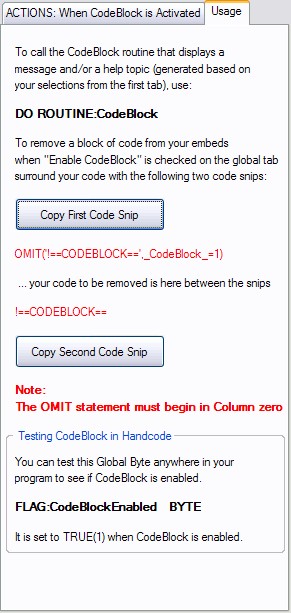
Manually calling the CodeBlock display routine
Anywhere in your code you can use the statement:
DO ROUTINE:CodeBlock
This will execute the ProCodeBlock generated code for displaying messages, displaying help topics and displaying a website URL based on the settings on the extension template.
Manually removing sections of code when ProCodeBlock is enabled
In order to have sections of your code removed during the compile when ProCodeBlock is enabled you have to surround that section of code with a conditional OMIT statement.
That statement must be EXACTLY as shown here:
OMIT('!==CODEBLOCK==',_CodeBlock_=1)
Your code to be removed here...
!==CODEBLOCK==
Note: The OMIT statement must begin in COLUMN 0
For your convenience, there are two buttons on the Usage tab that will open so that you can copy the exact code needed out and then paste it into your code as needed.
To copy the first code snip click this button:

Then this window will open:
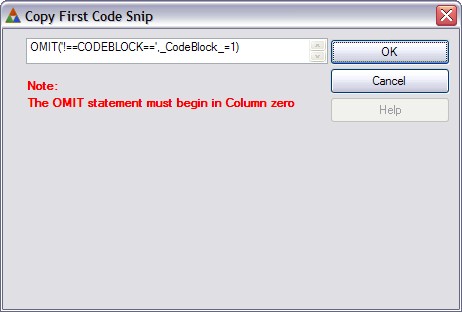
Highlight the code and copy it to the Windows Clipboard with CTRL+C.
The put your cursor where you want it in your code and use CTRL+V to paste the code from the Windows Clipboard.
To copy the second code snip click this button:

Then this window will open:
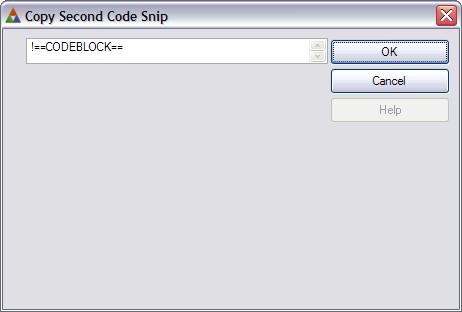
Highlight the code and copy it to the Windows Clipboard with CTRL+C.
The put your cursor where you want it in your code and use CTRL+V to paste the code from the Windows Clipboard.
Tip: You can also find the second snip of code in the first snip and just copy it from there.
OMIT('!==CODEBLOCK==',_CodeBlock_=1)
Your code to be removed here...
!==CODEBLOCK==
To manually block an EIP (Edit in Place) button action you need to add these lines of code in the Accepted event of the button:
!CodeBlock EIP Action
IF FLAG:CodeBlockEnabled = TRUE
DO ROUTINE:CodeBlock
SElF.Request = ViewRecord
CYCLE
END
This needs to be added to the INSERT, CHANGE and DELETE buttons. Then it will block the EIP action and trigger the CodeBlock display (as configured in the extension template).
Hint: There is a #CODE template that you can insert in the button embeds that will add these lines automatically.
Testing to see if ProCodeBlock is enabled
You can test the status of ProCodeBlock anywhere in your code by evaluating this global BYTE var:
FLAG:CodeBlockEnabled
It is set to TRUE when the Global CodeBlock Control is checked.
You can test the status (and optionally call the CodeBlock display routine) like this:
!If ProCodeBlock is enabled
IF FLAG:CodeBlockEnabled = TRUE
!Call the CodeBlock Display routine
DO ROUTINE:CodeBlock
... your other code here
END