The Block This Procedure Extension |

|

|
|
The Block This Procedure Extension |
|
|
The Block This Procedure Extension |
|
|
|
The Block This Procedure Extension |
|
|
CodeBlock can be used to block access to an entire procedure,
When enabled the ProCodeBlock template will surgically remove all of the generated and user entered code from the procedure at compile time and replace it with only the code needed to perform the CodeBlock actions.
This results in 100% hack proof protection for the code functions protected by this extension.
To CodeBlock a procedure, click the EXTENSION button in the procedure tree. Then type CodeBlock and select the CodeBlock: Block this Procedure template from the list as shown here:
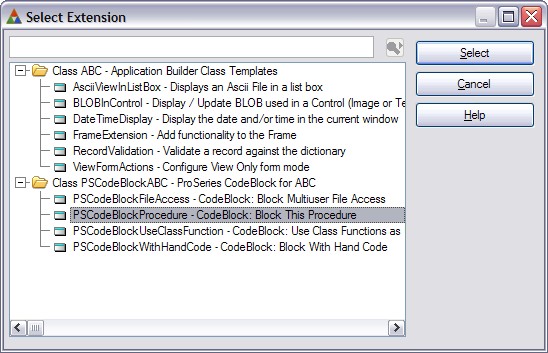
Then click SELECT to add this extension template to the procedure.
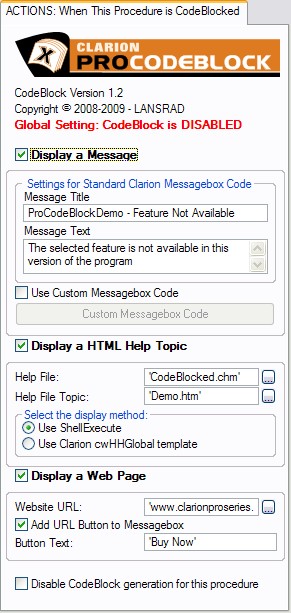
After the procedure is added you will see that it is populated with the options that you set in the global defaults.
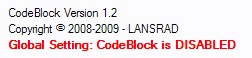
Global Template Status Indicator
On each of the Extension templates, you will see text that tells you if the Global ProCodeBlock Control is disabled or enabled.
Example: Disabled
Example: Enabled
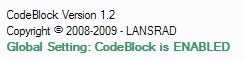
This visual indicator means that you do not have to open the global extension to determine if ProCodeBlock is active or not.
Display a Message
If this option is checked a Messagebox will be displayed when ProCodeBlock is active.
Message Title
This is the TITLE of a standard Clarion Messagebox.
Message Text
This is the TEXT of a standard Clarion Messagebox.
Use Custom Messagebox Code
Check this option to disable the Standard Messagebox generation and enable an entry button where you can type or paste your own Custom Messagebox code.
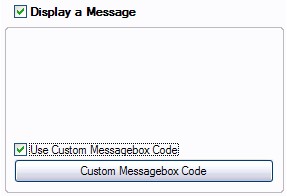
Custom Messagebox Code
Click this button and type/paste your own Custom Messagebox code.
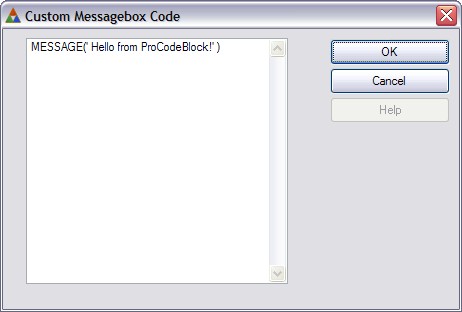
Display a HTML Help Topic
If this option is checked a HTML help topic will be displayed when ProCodeBlock is active.
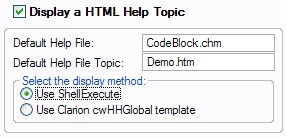
Default Help File
Enter the name of the default HTML help file to display (no quotes needed on this extension)
Default Help Topic
Enter the name of the default HTML help file topic to display (no quotes needed on this extension)
Select Display Method
ProCodeBlock can display a HTML help file topic using the ShellExecute API or with the standard Clarion cwHHGlobal template.
The default value is to use ShellExecute.
What's the difference?
Using ShellExecute to display the help topic means that the help topic will remain open after your application closes. This can be very useful when you want to close your application after advising the user that they have been CodeBlocked.
Display a Website URL
If this option is checked a website URL will be displayed in the user's browser when ProCodeBlock is active.
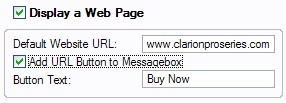
Default Website URL
The URL to display (using ShellExecute)
Add URL Button to Messagebox
Check this box to add a button on the standard Messagebox (above) that offers to take the user to a website URL when the Messagebox is displayed.
Button Text
The text to go on the standard button (limited to about 10 characters).
The default text is Buy Now.
Note: the button text is disabled if you are using Custom Messagebox code above
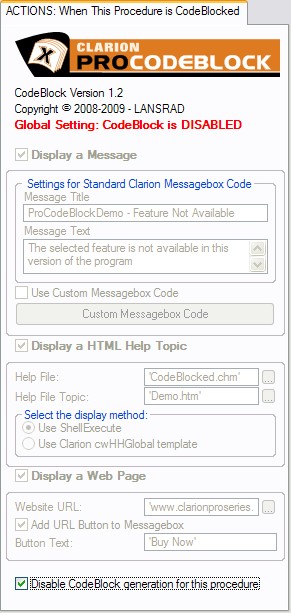
Disabling ProCodeBlock for this template
If you check the Disable CodeBlock box at the bottom of the tab then no ProCodeBlock code will be generated for this template on this procedure. The tab will be disabled to provide a visual indicator.