General Settings |

|

|
|
General Settings |
|
|
General Settings |
|
|
|
General Settings |
|
|
The Global Extension - General
The General tab of the Global Extension gives you these options:
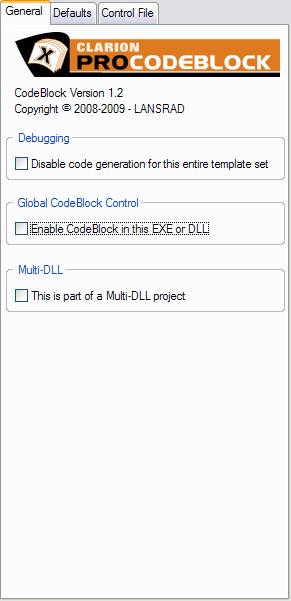
Debugging
If you want to troubleshoot a problem in your application and make sure that it is not ProCodeBlock related, you can check this box to disable code generation for the entire application.

If you disable ProCodeBlock generation then the other field and tabs on this extension will be hidden. Then in the other extension templates all controls will be disabled as well and the Global Setting indicator on those templates will show that the CodeBlock is disabled.
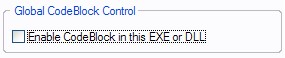
Check this box to enable ProCodeBlock in your application.
Global Template Status Indicator
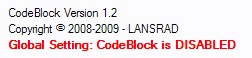
On each of the Extension templates, you will see text that tells you if the Global ProCodeBlock Control is disabled or enabled.
Example: Disabled
Example: Enabled
Multi-DLL Projects
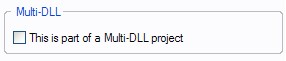
NOT A Multi-DLL Project
If the application is NOT a part of a Multi-DLL project, do NOT check this box.
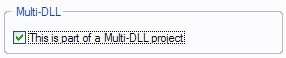
Main EXE
If the global template is being added to the Main EXE for the Multi-DLL project check this box.
DLL Options
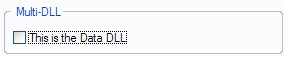
The ProCodeBlock templates automatically detect a DLL extension and offers you a chance to declare it as the Data DLL. Use one of the following options as needed.
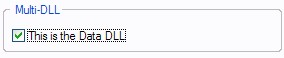
Data DLL
If this is the Data DLL for the project, check this box to export the ProCodeBlock declarations.
Other DLL
If the global template is being added to a DLL that is NOT the Data DLL, then do not check the box.