Configuring Child Tables to Archive |

|

|
|
Configuring Child Tables to Archive |
|
|
Configuring Child Tables to Archive |
|
|
|
Configuring Child Tables to Archive |
|
|
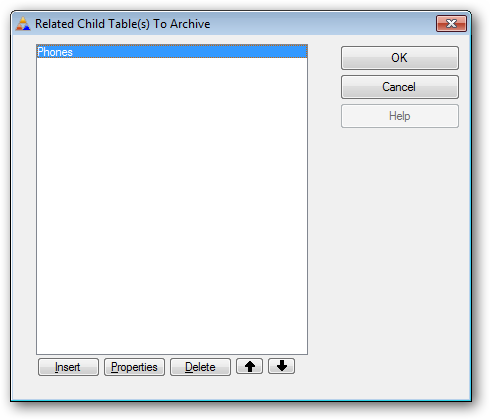
To archive records in related child tables you need to show ProArchive what tables to archive and how the files are related to the primary table.
First click the INSERT button to add a child table:
Click the droplist to select the related child table from list of files you configured on the global extension tab.
Next click the lookup button to select the key from the child table that is used to link the file to the parent table.
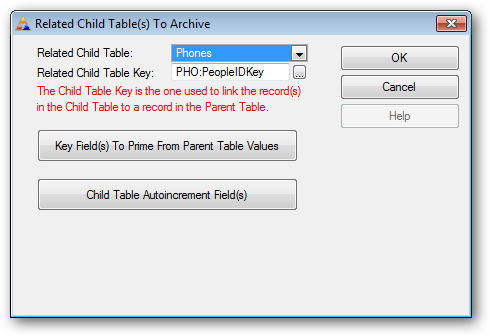
Priming Keys in the Child File
To help ProArchive map the correct child file records to the parent file, you need to tell it what fields in the child file key need to be primed with values from the parent file record.
Click this button to setup the field priming:
Click INSERT to add a new entry to the priming table:
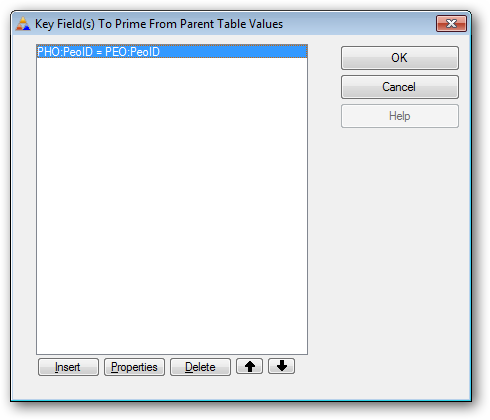
Next use the lookup button to select the field from the child key.
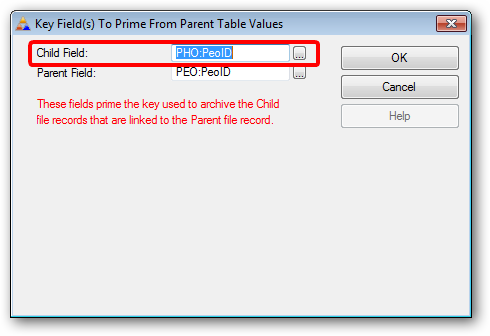
Then select the field from the key components.
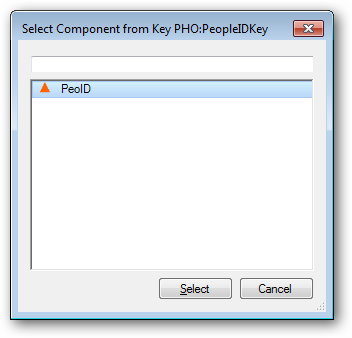
Repeat the process to select the field from the parent record that will be used to prime the field in the child key.
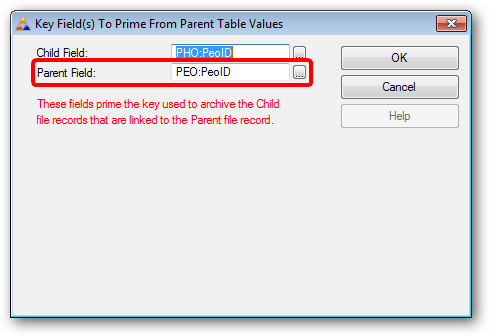
Then select the field from the parent file that is used to prime the field in the child key.
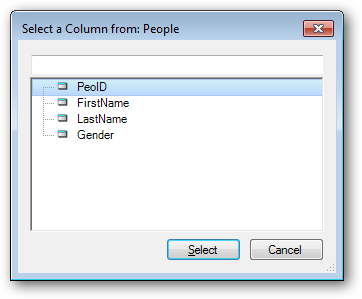
Child Autoincrement Fields
If there are child table autoincrement fields that need to be preserved, click this button:
Then use the same steps as you use in Configuring Primary Table Autoincrement Fields to configure them.
Repeat these steps for any other key fields that need to be primed or child autoincrement fields that need to be preserved.