ReportShare |

|

|
|
ReportShare |
|
|
ReportShare |
|
|
|
ReportShare |
|
|
The ReportShare template allows you to share an existing report between active and archive data files.
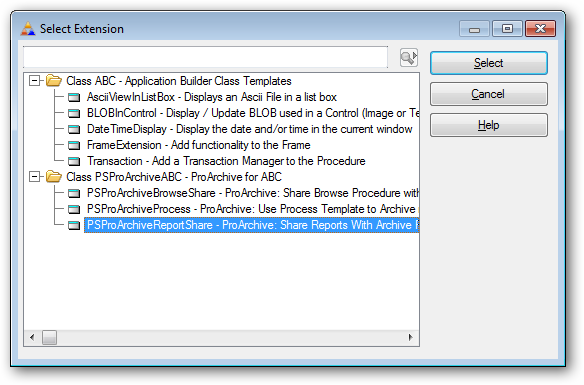
First add the extension template to the report procedure.
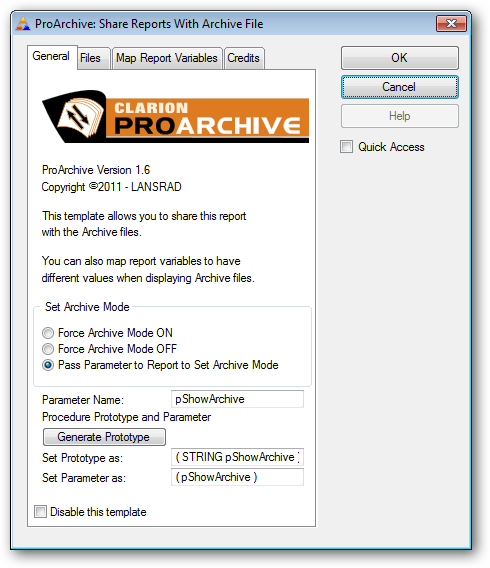
The General tab.
Set Archive Mode
This template allows you to force the Archive Mode ON, OFF or to use a parameter passed to the report to set the mode.
To enable the feature, select the Pass Parameter to Report to Set Archive Mode option.
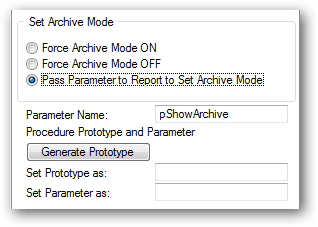
The default parameter variable name is pShowArchive.
Click this button and the template will generate the prototype and parameter code for you.
Then you will see the generated code:
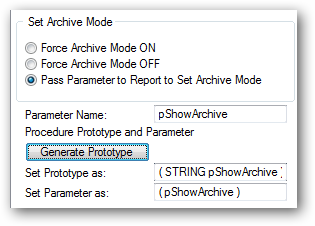
Click into the Set Prototype as field, highlight and then use CTRL+C to copy the contents to the clipboard.
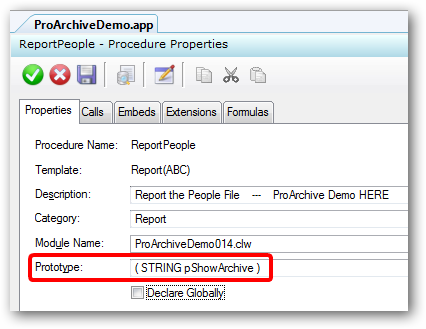
Next open your report procedure properties and paste the contents into the prototype field as shown here:
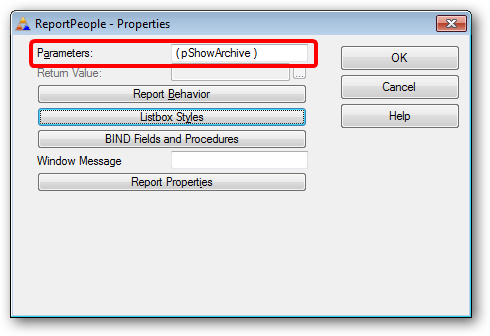
Then click the Action button and paste the contents into the parameters field.
Then delete the STRING part of the clipboard content leaving only the parameter name as shown here:
The Files tab.
This tab is where you tell ProArchive what files are being archived in this procedure.
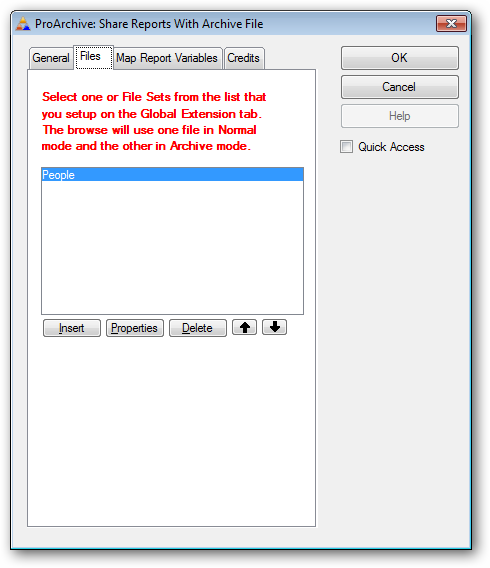
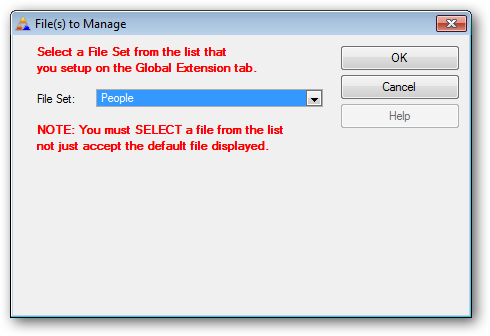
Click INSERT and select a file set from the drop list that contains the names of the primary file for each set that you defined in the ProArchive global extension.
Note that even if the file you want is the default value - you still need to click the drop down and select it from the list so that template processing can take place based on your selection.
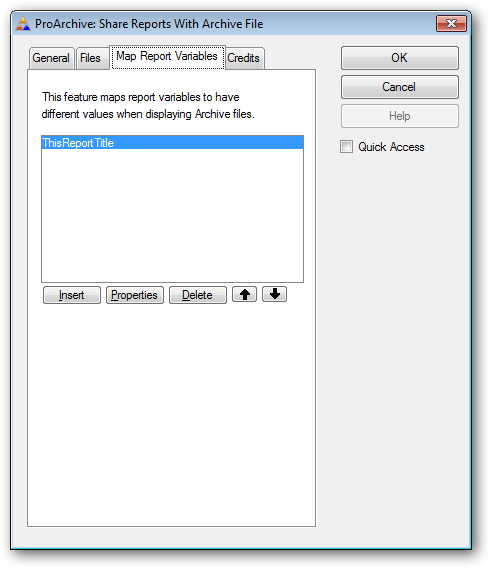
The Map Report Variables tab.
A very useful feature of the ReportShare template is the ability to map report variables to different values depending on if the file being viewed is the active file or the archive file.
Click INSERT to add a new mapping:
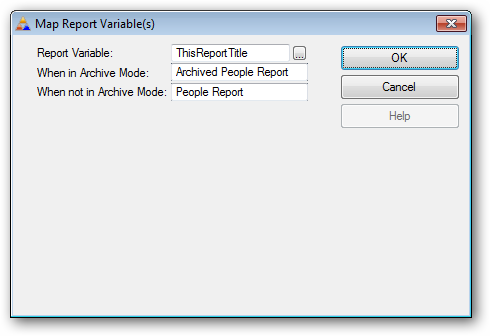
Use the lookup button to select a report variable.
Then type the value in to be displayed when the report is in Archive Mode and when it is not in Archive Mode.
Next populate the variable onto the report:
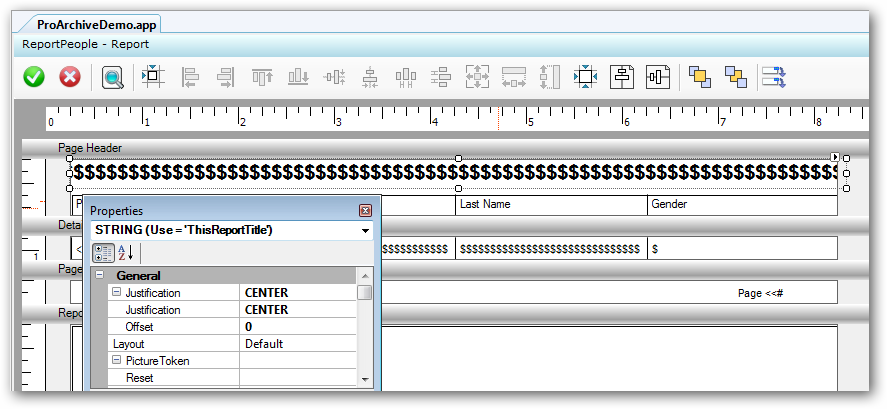
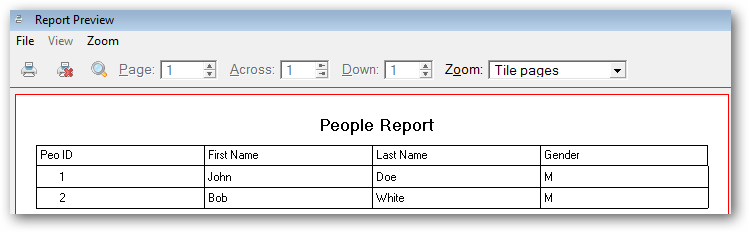
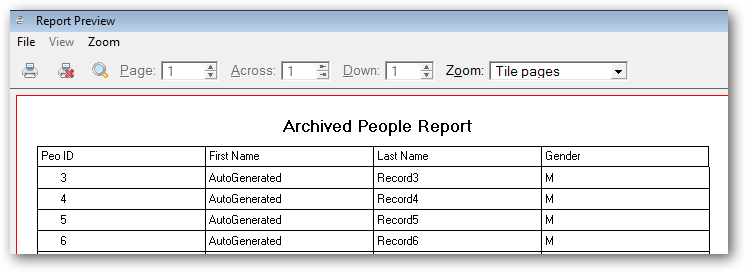
When the report is displayed at runtime, the variable will be updated depending on which file is being displayed:
Example: Active File Displayed
Example: Archive File Displayed
Repeat this process for as many variables as are needed.
The Credits tab.
This tab is where we give special credit to the people who helped make this template possible.