ArchiveProcess |

|

|
|
ArchiveProcess |
|
|
ArchiveProcess |
|
|
|
ArchiveProcess |
|
|
The ArchiveProcess template allows you to use the normal Clarion process template to archive multiple records.
First add the extension template to the standard Clarion process procedure.
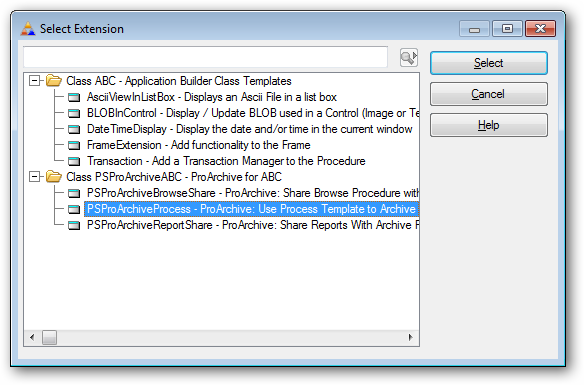
Note: In addition to adding the extension to the process procedure, you also need to add the Move To Archive CODE template to the report
Click here for details
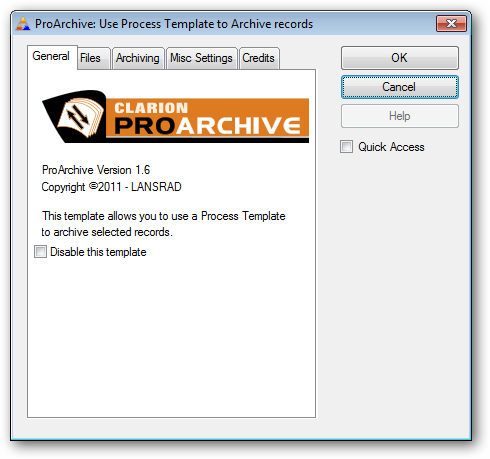
The General tab.
The Files tab.
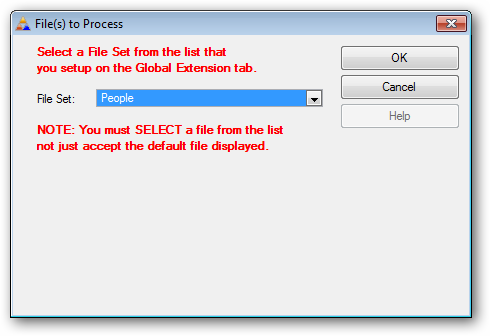
This tab is where you tell ProArchive what files are being archived in this procedure.
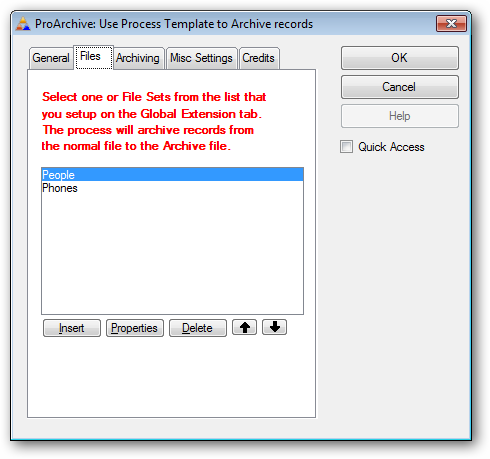
Click INSERT and select a file set from the drop list that contains the names of the primary file for each set that you defined in the ProArchive global extension.
Note that even if the file you want is the default value - you still need to click the drop down and select it from the list so that template processing can take place based on your selection.
The Archiving tab.
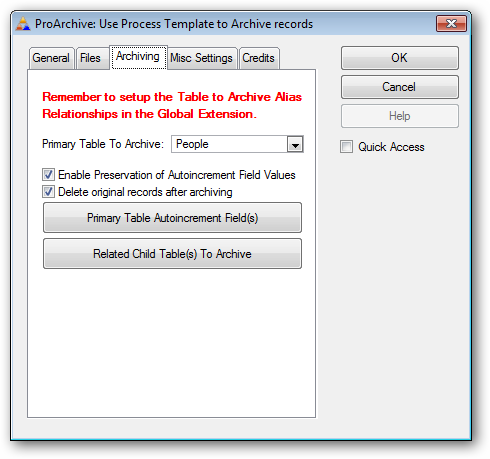
First select the Primary Table to Archive from the droplist.
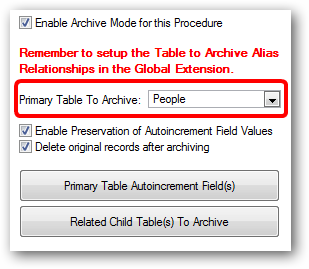
Preservation of Autoincrement Field Values
By default the archive action will preserve the values of autoincrement fields.
Delete original records after archiving
By default the original record will be deleted from the active file if the archive action is a success.
Configuring Primary Table Autoincrement Fields
Click this button to configure the primary table autoincrement fields:

Click here for details on Configuring Primary Table Autoincrement Fields
Configuring Related Child Tables to Archive
ProArchive can automatically archive records from one or more child files related to the primary table.
Click this button to add and configure any related child files

Click here for details on Configuring Related Child Tables to Archive.
The Misc Settings tab.
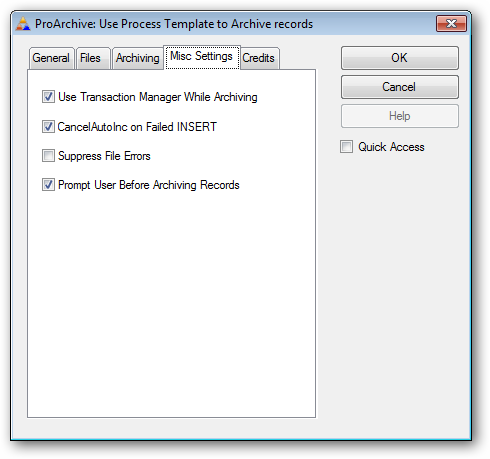
Use Transaction Manager While Archiving
By default ProArchive wraps the archive actions in the Transaction Manager to ensure that the entire process of moving and/or deleting records from both the parent and child files is a success.
CancelAutoInc on Failed INSERT
By default, ProArchive will cancel the autoincrement when an insert fails (before the rollback occurs).
Suppress File Errors
When this box is checked, the code generated will use the "Try" methods ( such as "TryInsert" ) to suppress file errors.
Prompt User Before Archiving Records
When this box is checked, a MESSAGE statement will prompt the user to confirm that they want to archive the record.
The Credits tab.
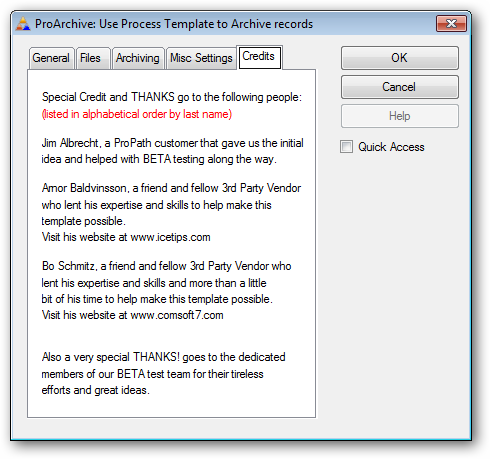
This tab is where we give special credit to the people who helped make this template possible.