The Block Multiuser File Access Extension |

|

|
|
The Block Multiuser File Access Extension |
|
|
The Block Multiuser File Access Extension |
|
|
|
The Block Multiuser File Access Extension |
|
|
CodeBlock technology gives you the ability to easily block Multiuser access to your data files and to prevent multiple copies of your program from running at the same time.
Note: Unlike going into the global settings for your Clarion project and changing the file open mode from SHARE to OPEN, the ProCodeBlock technique does NOT break your MDI applications (where a user could have more than one browse open into the same file).
How does it work?
CodeBlock automatically adds a control file definition to your application, creates it if it does not exist and adds the COMPUTERNAME (as returned from an API call) to a control record.
Then on startup if the file exists, the template will load the record and compare it to the COMPUTERNAME (as returned from an API call). If the two do not match then the ProCodeBlock actions (as defined on the Extension template) are taken.
If the control file is already in use by a copy of the program on the same computer, then the ProCodeBlock actions (as defined on the Extension template) are taken and the second copy of the program exits.
This technique not only keeps multiple copies of the app from starting, but also prevents users from placing the program data in a shared location and accessing it with multiple installed copies of your software.
NOTE: To block Multiuser file access or prevent multiple copies of your program from running at the same time, you need to add this extension to the Frame or Main procedure in your application.
To add the extension, click the EXTENSION button in the procedure tree. Then type CodeBlock and select the CodeBlock: Block Multiuser File Access template from the list as shown here:
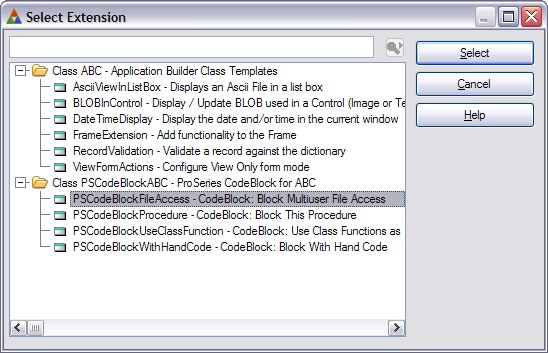
Then click SELECT to add this extension template to the procedure.
After the procedure extension is added you will see that it is populated with the options that you set in the global defaults.
As always you can uncheck any of the option boxes to disable those ProCodeBlock actions.
In this example we have only left the Messagebox enabled and have changed it to reflect the blocking of Multiuser access.
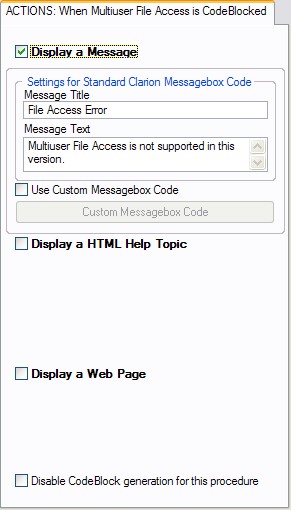
In this example when the second copy of the program tries to start this message is displayed:
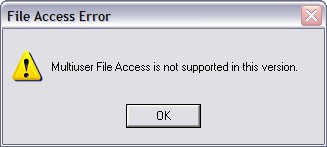
then the program copy that displayed the message exits.