Setup Table to Archive Alias Relationships |

|

|
|
Setup Table to Archive Alias Relationships |
|
|
Setup Table to Archive Alias Relationships |
|
|
|
Setup Table to Archive Alias Relationships |
|
|
Note: if you are using ProPath with ProArchive, click here instead of following the steps below.
To setup table to archive alias relationships, you click this button on the global extension template,
Note: You must add an Archive ALIAS to the dictionary for each table that you want to archive. Do NOT attempt to use existing aliases.
Click here for details on setting up Archive Aliases.
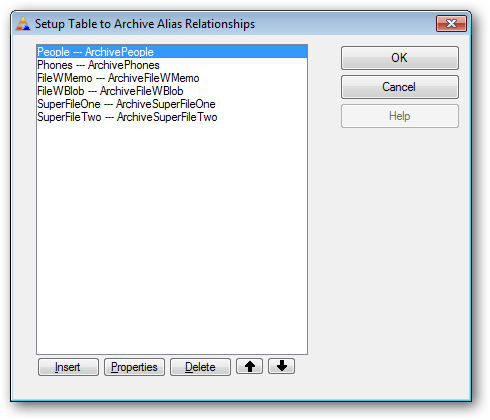
Click the INSERT button to add a new table relationship.
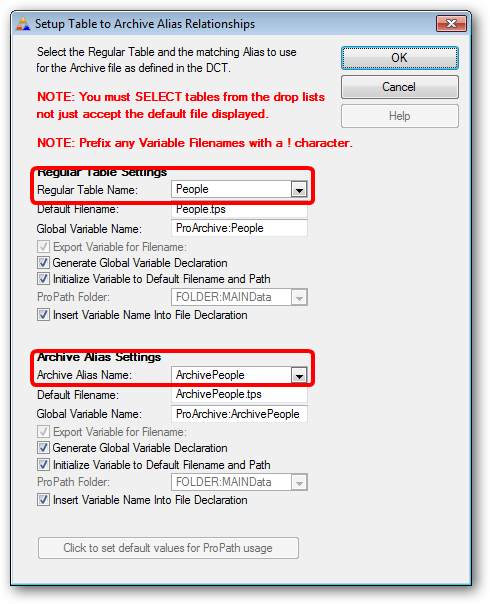
This screen will do most of the work for you if you follow these steps:
1.Click the drop list to select the Regular Table Name
2.Click the drop list to select the Archive Alias Name
The template will fill in the default values for you.
You should not change these settings unless you have a good reason to do so.